
Many brokerages have teams of agents that work together on some or all deals. Before agents can share transactions, the agents must be added to the same team. You can create a sharing group or team, and add or remove agents as needed. You can also add an administrator to the team, and allow them to impersonate agents on the team, so they can assist with updating transactions, documents, and so on.
Step 1: Click on the profile icon on the top right and then click on "Settings."

Step 2: Click "Teams/Sharing."
Step 3: Click "Add."
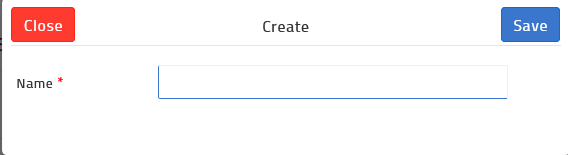
Step 4: In the Name field, enter a name for the team.
Step 5: Click "Save." The properties of the team appear.
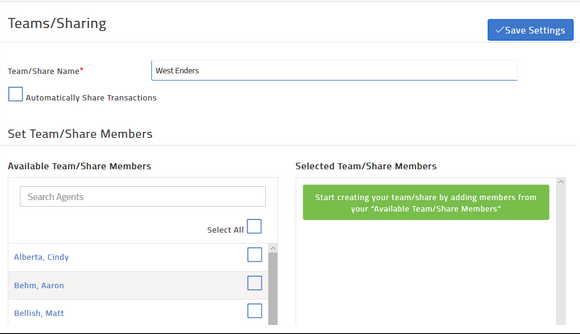
Step 6: From the list of Available team/Share Members, check one or more agents to include in the team, and click Add Members. The selected team members appear on the right side of the page.
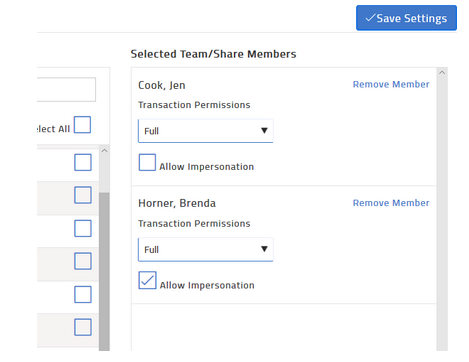
Step 7: For each selected member, specify the transaction permissions. Do one of the following:
- Read access allows members to view the transaction but can't make changes
- Write access allows members to make changes to the transaction but can't delete them
- Full access provides read/write/delete access to your transactions
Step 8: Allow Impersonation gives the members the option to impersonate you.
Step 9: Automatically Share Transaction will always share any newly created transaction to the group.
Step 10: When you have finished adding members with the appropriate privileges, click "Save Settings."
Comments
0 comments
Article is closed for comments.